Select what you need
Auto region capture detects elements such as buttons and tables. You can also capture a window, a fixed area, a full screen or scrolling content.
 Ttaom
Ttaom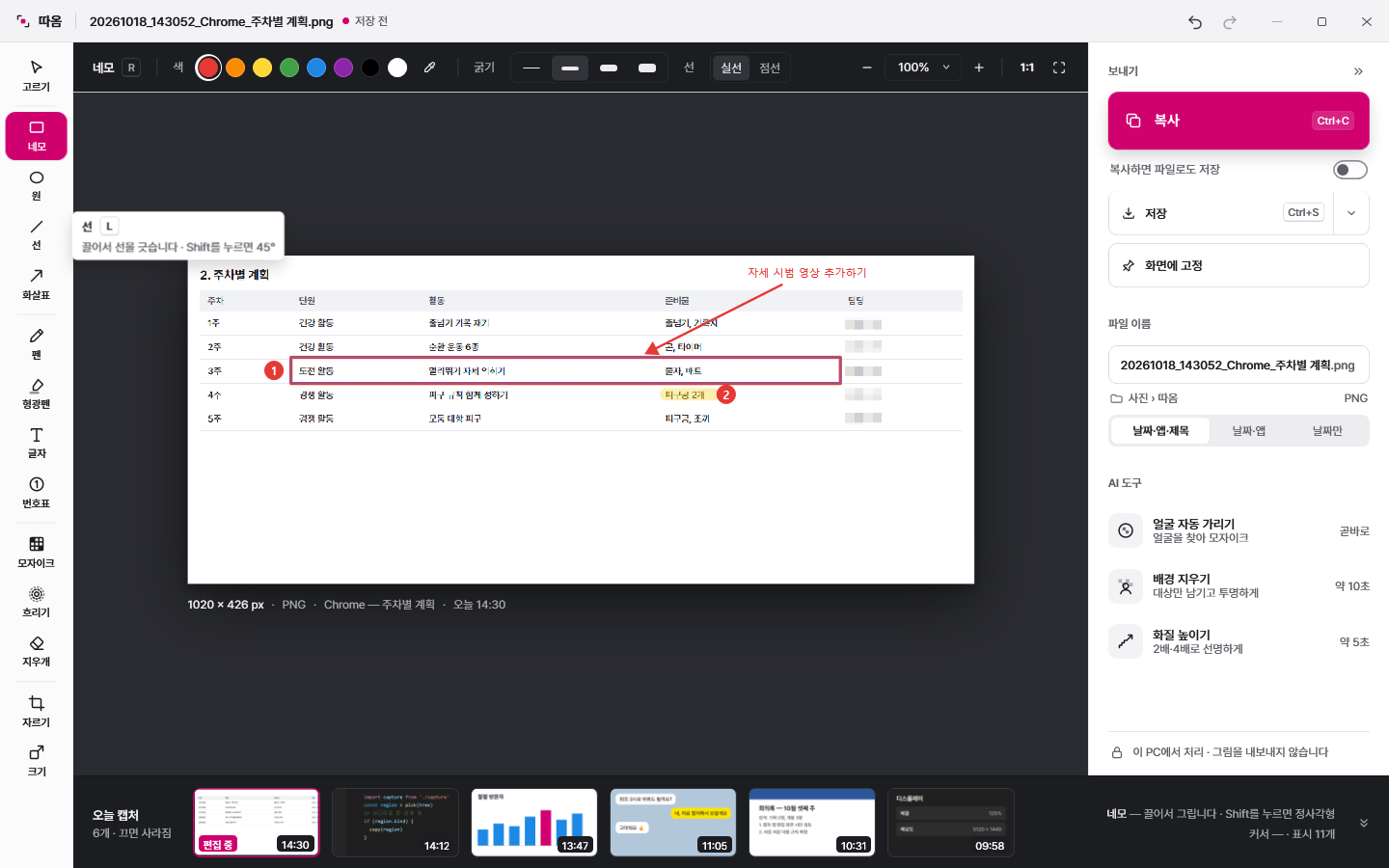
Actual app screens in Korean · sample content for illustration.
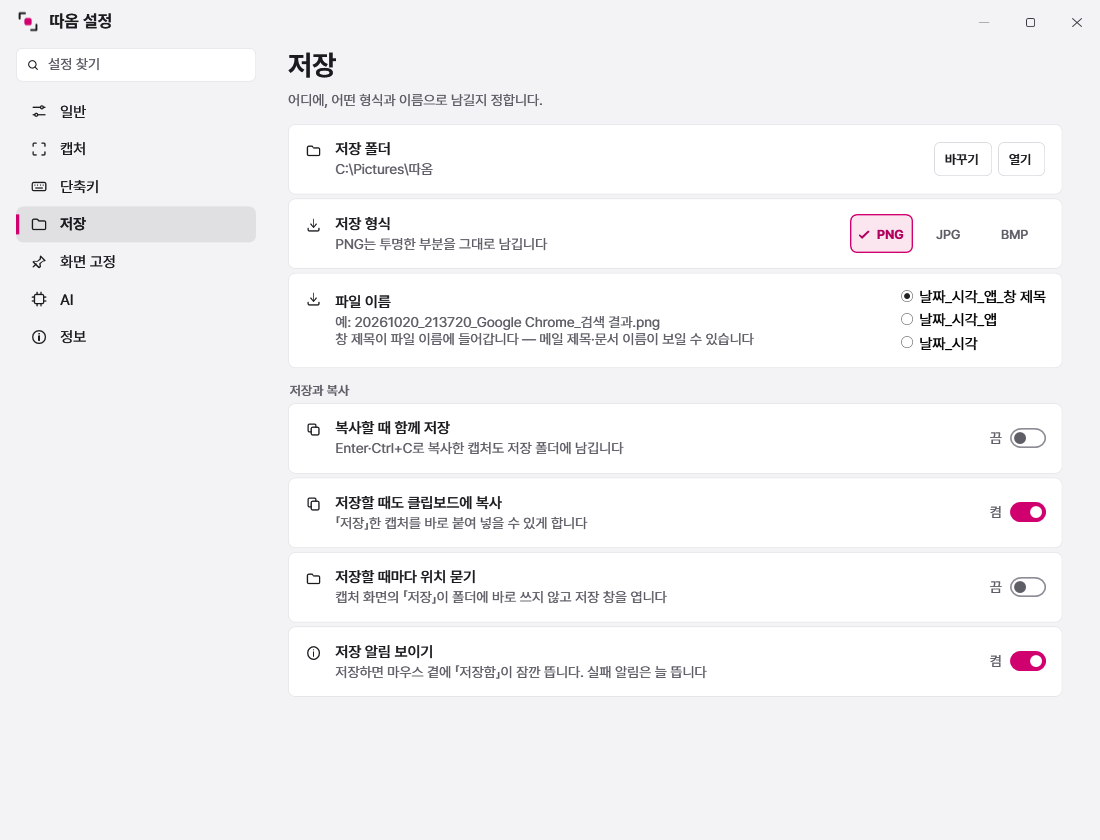
Set your file format and clipboard options in one place.
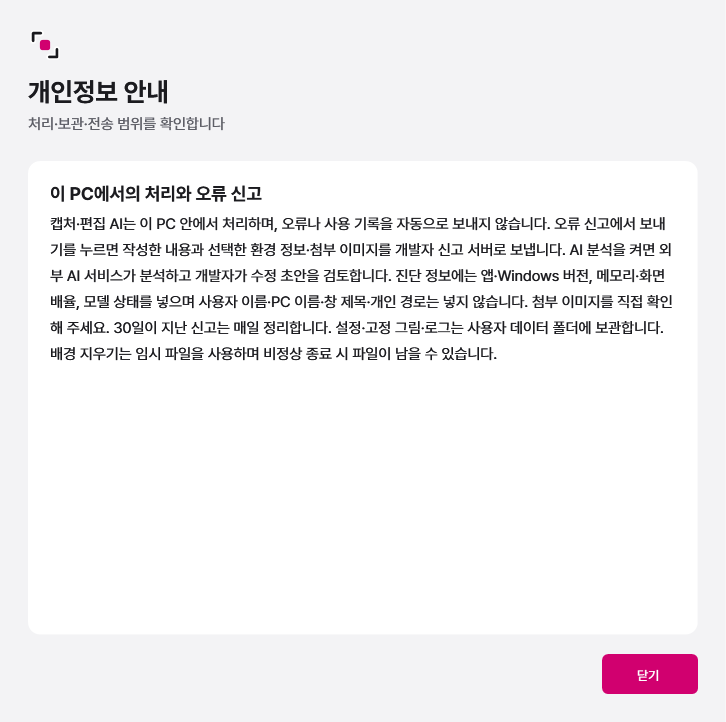
See what stays on your PC and what gets sent.
Auto region capture detects elements such as buttons and tables. You can also capture a window, a fixed area, a full screen or scrolling content.
Explain with rectangles, arrows, text and numbers. Hide sensitive areas with mosaic or blur, then check the result.
Copy to the clipboard or save as PNG, JPG or BMP. Pin an image on screen to reference while working in other windows.
Hide faces, remove backgrounds and upscale images without an internet connection.
Choose which faces to keep visible. Refine background removal with a brush or color selection. AI can miss details, so check the result before sharing.
Capture and AI processing run locally. Reports send only the text, optional diagnostics and attachments you choose to submit. External AI analysis is optional.
For Windows 11 x64 · Developer Jihun Shin
Check the Windows Print Screen setting in Ttaom Settings → Shortcuts, or choose another shortcut. Ctrl+Alt+S is also supported.
Go to Ttaom Settings → About → Report a problem and describe what happened and what you were doing. Diagnostics and screenshots are optional. No GitHub account is required.
Enable automatic checks and downloads in Settings to get new versions in advance. Restart after finishing your work to apply them. You can turn off checks and downloads separately.